IP Remote Utility
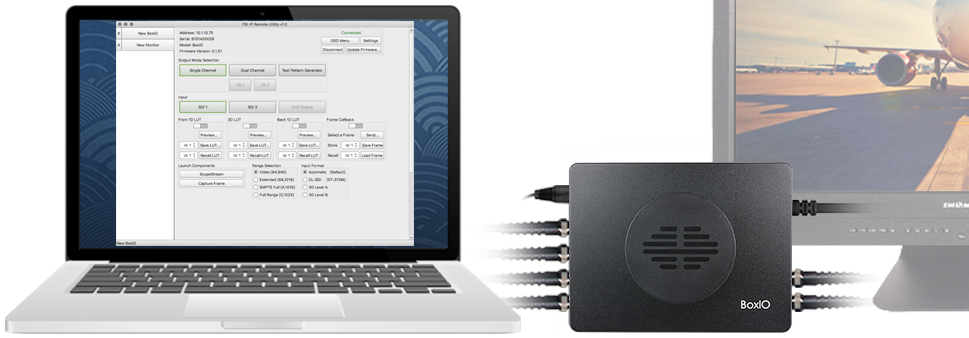
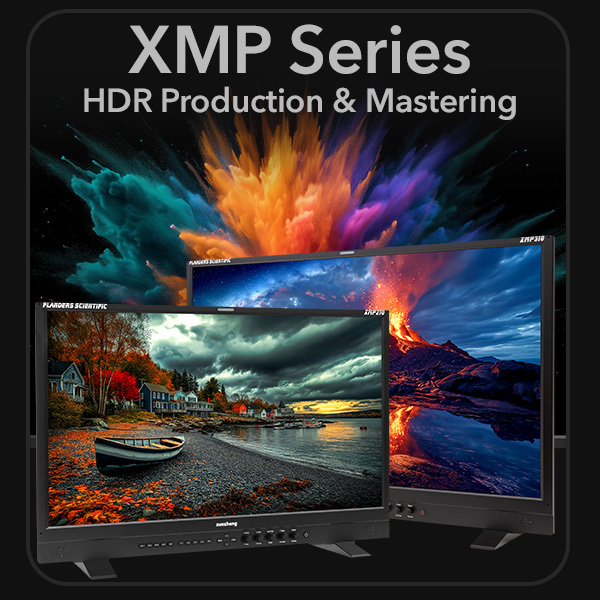
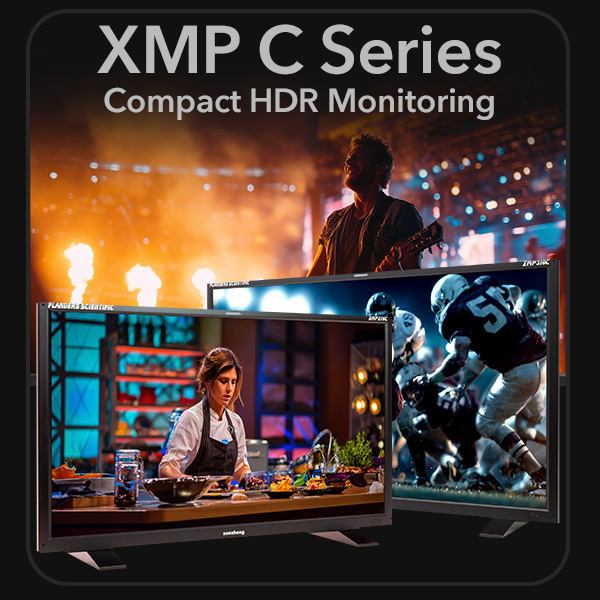
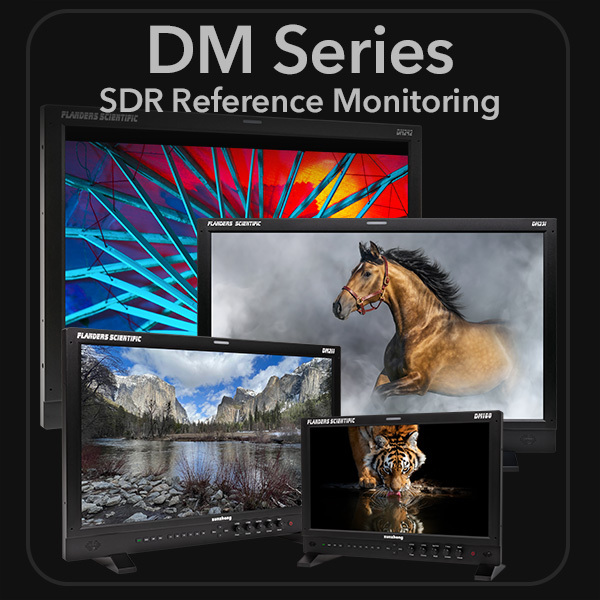
The IP Remote Utility, available for Mac, PC, and iOS devices, provides useful toggles and controls for management of your AM, BM, CM, DM, XM, & XMP series monitors as well as BoxIO units.
Monitors
Control AM, BM, CM, DM, XM, & XMP series function keys, menu keys, and quickly switch inputs.
On DM series monitors, capture frames at full resolution that can be saved instantly as a .JPG, .BMP, or BoxIO .RAW image.
Keyboard Shortcuts
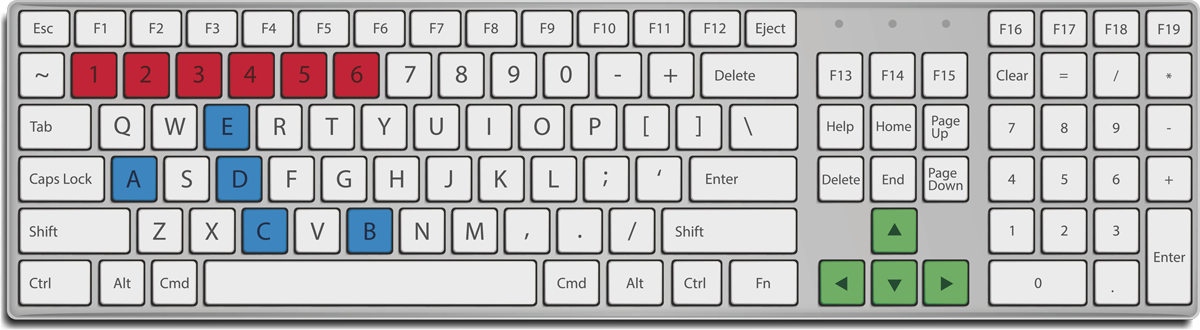
New in IPRU version 1.7.1 and newer, use your computer’s keyboard to control your monitor. Below are a few of the basic commands available — see the full list of keyboard commands on the shortcuts reference.
| Inputs | |||||
|---|---|---|---|---|---|
| Key | A | B | C | D | E |
| AM | BM | CM | SDI 1 | SDI 2 | YPbPr | Video | DVI |
| DM | SDI 1 | SDI 2 | DP | DVI | — |
| XM | SDI 1 | SDI 2 | SDI 3 | SDI 4 | DP |
| XMP | SDI 1 | SDI 2 | SDI 3 | SDI 4 | — |
| Functions | ||||||
|---|---|---|---|---|---|---|
| Key | 1 | 2 | 3 | 4 | 5 | 6 |
| AM | BM | CM | F1 | F2 | F3 | F4 | F5 | — |
| DM | F1 | F2 | F3 | F4 | F5 | F6 |
| XM | F1 | F2 | F3 | F4 | F5 | — |
| XMP | F1 | F2 | F3 | F4 | F5 | — |
| Menu Navigation | ||||
|---|---|---|---|---|
| Key | Left Arrow | Right Arrow | Up Arrow | Down Arrow |
| All Monitors | Menu | Enter | Up | Down |
Stream Deck
A Stream Deck can be easily configured for use with the IP Remote Utility to trigger keyboard shortcuts.
Download the IPRU Sample Profiles and Quick Start Guide PDF.
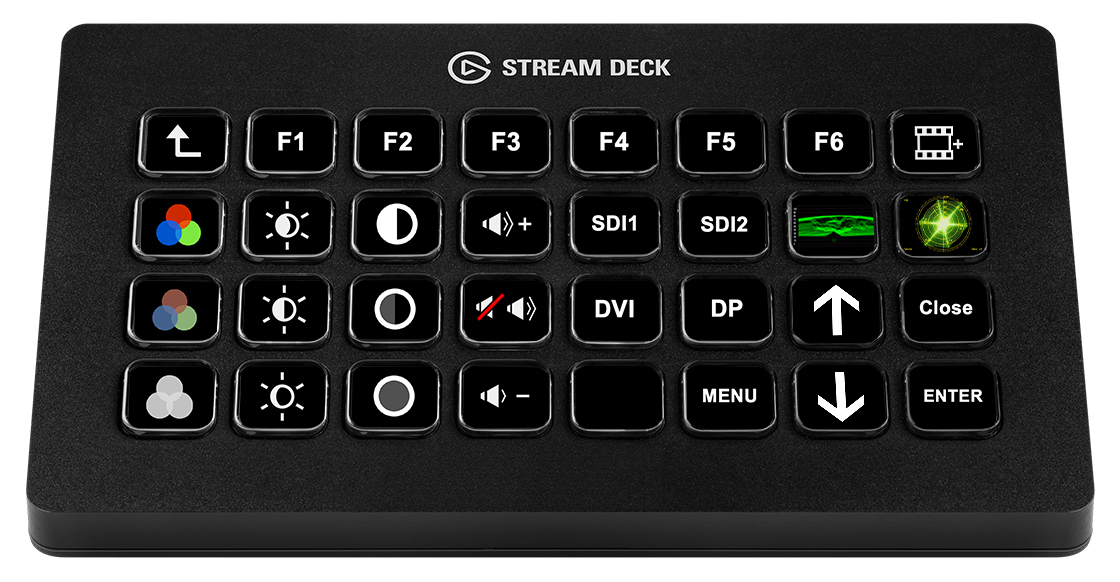
On XMP units a Stream Deck can also be used for direct control of basic monitor key selections from your computer without needing to run the IPRU. This is accomplished by assigning shell scripts to Stream Deck buttons. These scripts should not be used if you are connecting directly to your monitor from third party applications like LiveGrade as they may interrupt connectivity to those applications, but for users in post production suites simply looking to use their Stream Deck as a remote keypad for their displays these scripts provide the benefit of not having to switch into and out of the IPRU for control.
Shell Scripts .ZIP

Shell Script Instructions .PDF
BoxIO
Quickly change operation mode and channel settings, load LUTs to BoxIO to toggle On & Off quickly, update firmware, manage BoxIO IP addresses and WiFi settings, and capture frames at full resolution that can be saved instantly as a .JPG, .BMP, or BoxIO .RAW image.
Many features require the use of BoxIO Firmware 1.57 or newer. Find updated firmware on our firmware page.
ScopeStream
The world’s first real-time Waveform and Vectorscope transmitted directly from your BoxIO or DM series monitor to your computer with no additional equipment needed. Simply connect your BoxIO or DM series monitor and computer to the same network and use the IP Remote Utility.
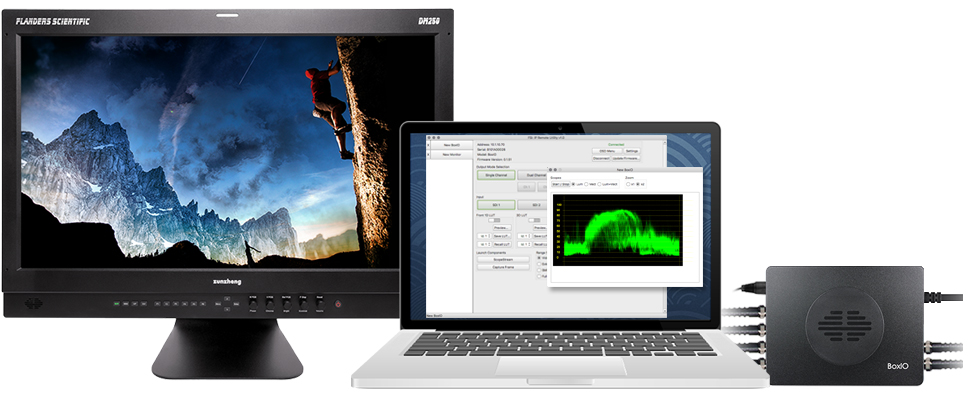
User Profiles
You can easily recall BoxIO and Monitor tab configurations by saving and loading profiles. Loading a profile will recall all of your tabs, device names, and IP addresses. Profiles are saved as .txt files and can be transferred to another computer or quickly recalled.
IPRU Overview
Learn about the basic functionality of the IP Remote Utility in this overview video.
Download
Downloading the IPRU software means you agree to the terms of the EULA found here.
IP Remote Utility (Mac)
1.11.0
Requires macOS 10.13 or newer.
IP Remote Utility (PC)
1.11.0
Requires Win 10 or newer.
Download IP Remote Utility User Manual
iOS
The IP Remote Utility is also available for iOS devices and allows for unique capabilities including saving frame captures, with or without LUT applied, directly to your device’s photo folder. Download it for free through the Apple App Store.